The Angular CLI is a command-line interface for Angular developed by the Angular Team. This tool helps us quickly get started with creating the Angular application. In this tutorial, we will learn how to create and manage an Angular app using the Angular CLI commands. We will be covering commands like ng new, ng generate component, ng generate directive & ng generate pipe, etc.
The Angular CLI is a command-line tool that allows us to create, develop, scaffold, and manage Angular applications from a command shell.
Angular CLI takes care of the time-consuming and error-prone task of creating and configuring the initial application. It also helps us quickly add new components, directives, and modules.
Using Angular CLI, you can
ng serve“) compiles our application,
starts a web server, and runs our application.Angular is a complete framework that helps build single-page client applications. It consists of core functionalities that you need to develop a client application. It contains various libraries and tools to help us do that.
Angular CLI is just a command-line tool. It contains lots of commands that make it easier to work with the Angular framework.
For example, using the command “ng new,” we can create a new Angular project within a few minutes.
We install the Angular CLI using the following npm command.
npm install -g @angular/cli@latest
The above command installs the latest version of Angular CLI on your machine. Note that we have used the -g flag (which stands for global) to install the Angular CLI system-wide so you can use it in all projects.
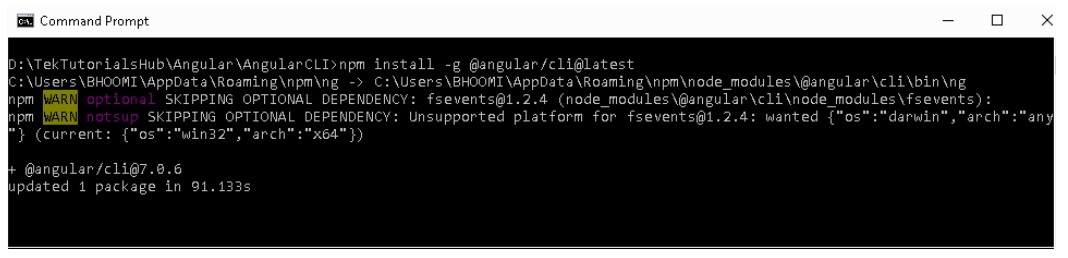
Since Angular Version 6, the Angular CLI follows the same Version No as the Angular. Hence for Angular 7, the corresponding version of the Angular CLI is 7.
The Angular CLI version 1.7 was for Angular 5, and Angular CLI 1.4 was for Angular 4
You can keep track of the latest Angular CLI release from Angular CLI release information.
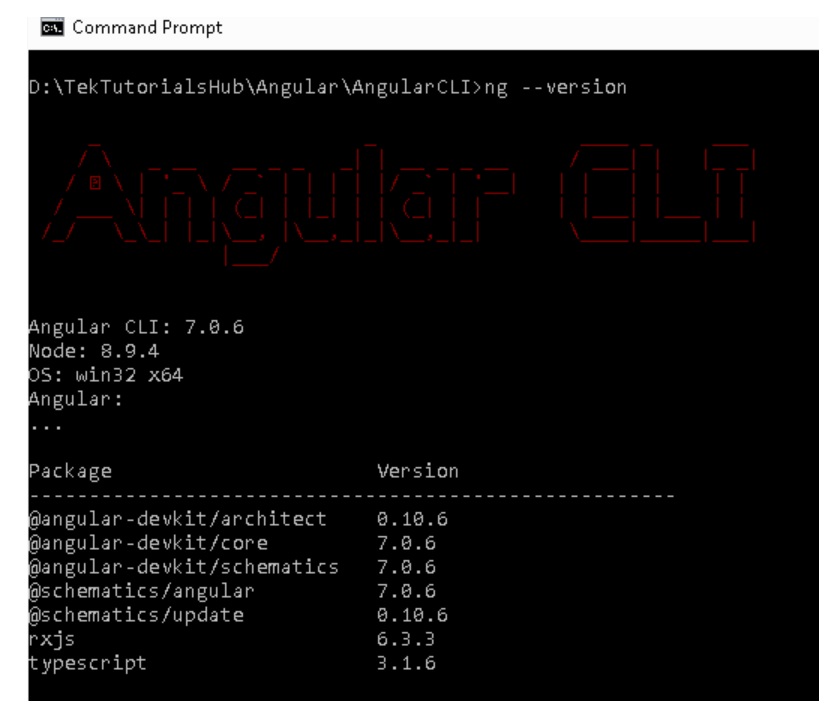
You can find out the Current Installed Angular CLI Version by Using the Command
ng --version
The latest version as of writing this article is 7.0.6. The command above also gives the version of the node installed in your system.
| Commad | Alias | Description |
|---|---|---|
| help | Help message shows the List of available commands and their short descriptions. | |
| version | v | Find out the version of the Angular CLI Installed |
| new | n | Creates a new folder (Workspace) and ads the initial Angular app. Note that you can create multiple apps in a single folder (Workspace) |
| add | Adds the npm package to the workspace and configure the default app project to use that library. | |
| generate | g | Generates and/or modifies files based on a schematic. |
| update | Updates your application and its dependencies | |
| serve | s | Builds and serves your app, rebuilding on file changes. |
| run | Runs a custom target defined in your project. | |
| build | b | The Compiles the Angular app into an output directory ( Default is dist) |
| test | t | Runs unit tests in a project. |
| e2e | e | Builds and serves an Angular app, then runs end-to-end tests using Protractor. |
| config | Retrieves or sets Angular configuration values. | |
| doc | d | Opens the official Angular documentation (angular.io) in a browser, and searches for a given keyword. |
| lint | i | Runs linting tools on Angular app code in a given project folder. |
| xi18n | Extracts i18n messages from source code. |
ng help
Getting help on individual commands us the syntax ng [command name] --help. For Example
ng add --help       //help on add command
ng new --help       //help on new command
The ng new command is used to create new folder and creates an App with the provided name.
ng new
The command will ask you
The above command will create a folder GettingStarted and copies all the required dependencies and configuration settings. The Angular CLI does the following
To run the application cd into the folder and run either ng server or use npm start (which runs the ng serve behind the scene)
cd gettingStarted
ng serve         // or npm start
Now open the browser and enter the URL http://localhost:4200/ and you should be able to see Welcome to GettingStarted! Message
You can stop the app by pressing ctrl-c
| Options | Alias | DESCRIPTION | Value Type | Default Value |
|---|---|---|---|---|
| --collection | -c | A collection of schematics to use in generating the initial application. | String | |
| --commit | Initial git repository commit information. | boolean | true | |
| --create-application | Create a new initial application project in the 'src' folder of the new workspace. When false, creates an empty workspace with no initial application. You can then use the generate application command so that all applications are created in the projects folder | |||
| --defaults | Disable interactive input prompts for options with a default. | boolean | false | |
| --directory | The directory name to create the workspace in | string | ||
| --dry-run | -d | Run through and reports activity without making any changes. | boolean | false |
| --force | -f | Forces overwriting of any existing files in the project folder | boolean | false |
| --help | Shows a help message for this command in the console | boolean | ||
| --inline-style | -s | Use inline style rather than the external StyleSheet file. does not create external Stylesheets | boolean | false |
| --inline-template | -t | Does not create an external template file for the component. Specifies if the template will be in the ts file. | boolean | false |
| --interactive | Enable interactive input prompts | boolean | true | |
| --minimal | Installs a minimal set of features. does not create test files. | boolean | false | |
| --new-project-root | The path where new projects will be created, relative to the new workspace root. | string | projects | |
| --package-manager | The package manager used to install dependencies. | npm | yarn | pnpm | cnpm | ||
| --prefix | -p | The prefix to apply to generated selectors for the initial project. | ||
| --routing | Generates a routing module. If the option is not specified, it will ask for the confirmation | |||
| --skip-git | -g | Do not initialize a git repository. | boolean | false |
| --skip-install | Do not install dependency packages. | false | ||
| --skip-tests | -S | Do not generate "spec.ts" test files for the new project. | ||
| --strict | Creates a workspace with stricter type checking and stricter bundle budgets settings. This setting helps improve maintainability and catch bugs ahead of time | boolean | true | |
| --style | The file extension or preprocessor to use for style files. | css | scss | sass | less | ||
| --view-encapsulation | Specifies the view encapsulation strategy. | Emulated | None | ShadowDom | Emulated |
//creates with new project with Style CSS
ng new gettingStarted --routing  --style CSS

//creates the new project with HelloWorld_root as the selector
ng new HelloWorld --routing  --style CSS -p HelloWorld
ng generate <schematic> [options]
ng g <schematic> [options]
ng generate or (ng g) is used to generate components , module , class , pipes & directives , etc. The following tables show the list of artifacts that can be generated.
| schematic | Syntax | DESCRIPTION |
|---|---|---|
| appShell | ng g appShell [options] | Generate an App shell. Read about App Shell from here |
| application | ng g application [options] | Generates an application |
| class | ng g class [options] | Generates Class file |
| component | ng g component [options] | Generates a component |
| directive | ng g directive [options] | Generates a Directive |
| enum | ng g enum [options] | Generates an enum |
| guard | ng g guard [options] | Generates a Guard Component |
| interface | ng g interface [options] | Generates an Interface |
| library | ng g library [options] | Generates a Library |
| module | ng g module [options] | Generates a Module |
| pipe | ng g pipe [options] | Generates a Pipe |
| service | ng g service [options] | Generates a Service class |
| serviceWorker | ng g serviceWorker [options] | Generates a Service worker |
| universal | ng g universal [options] | Generates a Universal |
| OPTION | Alias | Default | DESCRIPTION |
|---|---|---|---|
| --defaults=true|false | false | When true, disables interactive input prompts for options with a default | |
| --dryRun=true|false | -d | false | When true, run through and report activity without writing out results. |
| --force=true|false | -f | false | When true, force overwriting of existing files |
| --help=true|false|json|JSON | false | Shows a help message for this command in the console. | |
| --interactive=true|false | false | When false, disables interactive input prompts. |
The following command generates the component.
ng g component <name> [options]
Examples
ng g component Hello
The above command does the following
Run these commands from the root folder of the application.
ng g component --flat Hello does not create the hello folder. The component is created in the src/app folder.
ng g component --flat hello/hello creates the component under src/app/hello folder
ng g component --export hello adds the component to the exports metadata array of the module.
ng g component --prefix=myapp hello uses the CSS selector as myapp-hello.
ng g component --selector=hi --force hello uses the selector as hi
ng g module account generates the code for account module
ng g component --module=account account/hello adds the component to the account module
ng g component --module=account hello this works provided the current directory
is module directory i.e src/app/account
The following is the list of all available options
| OPTION | Alias | Default | DESCRIPTION |
|---|---|---|---|
| --changeDetection= Default|OnPush | -c | Default | Specifies the change detection strategy. |
| --entryComponent= true|false | false | Specifies if the component is an entry component of declaring module. | |
| --export=true|false | false | Specifies if declaring module exports the component. | |
| --flat= true|false | false | Flag to indicate if a directory is created. | |
| --inlineStyle= true|false | -s | false | Specifies if the style will be in the ts file. |
| --inlineTemplate=true|false | -t | false | Specifies if the template will be in the ts file. |
| --lintFix= true|false | false | Specifies whether to apply lint fixes after generating the component. | |
| --module= module | -m | root module | Allows specification of the declaring module. |
| --prefix= prefix | -p | The prefix to apply to generated selectors. | |
| --project= project | The name of the project. | ||
| --selector= selector | The selector to use for the component. | ||
| --skipImport= true|false | false | Flag to skip the module import. | |
| --spec= true|false | true | Specifies if a spec file is generated. | |
| --styleext= styleext | css | The file extension to be used for style files | |
| --viewEncapsulation= Emulated| Native| None| ShadowDom | -v | Emulated | Specifies the view encapsulation strategy. |
ng g directive <name> [options] is used to generate the directive. For Example ng g directive Some generates the Some.Directive.ts. The following code is generated. It also generates the some.directive.spec.ts
import { Directive } from '@angular/core';

@Directive({
  selector: '[appSome]'
})
export class SomeDirective {

  constructor() { }

}
The above command does not create the folder. You can use the ng g directive directive/Some, which will create the directive under the folder directive.
You can use the command ng g directive --flat=false Some, which will create the directive under the folder Some (folder name is same as the directive name)
You can use the --force flag to force overwriting of the files, if the files already exists
Use the--module flag to add the directive to a module other than the root module.
Use the --prefix or --selector flag to change the CSS Selctor.
You can use the --export & --skipImport to add the directive to exports and imports metadata of the module
The following is the complete list of available options
| OPTION | Alias | Default | DESCRIPTION |
|---|---|---|---|
| --export=true|false | false | Specifies if declaring module exports the component. | |
| --flat= true|false | true | Flag to indicate if a directory is created. | |
| --lintFix= true|false | false | Specifies whether to apply lint fixes after generating the component. | |
| --module= module | -m | root module | Allows specification of the declaring module. |
| --prefix= prefix | -p | The prefix to apply to generated selectors. | |
| --project= project | The name of the project. | ||
| --selector= selector | The selector to use for the component. | ||
| --skipImport= true|false | false | Flag to skip the module import. | |
| --spec= true|false | true | Specifies if a spec file is generated. |
ng generate pipe <name> [options] is used to generate the pipe. For Example, ng g pipe Date generates the date.pipe.ts. The following code is generated. It also generates the date.pipe.ts.spec.ts
import { Pipe, PipeTransform } from '@angular/core';

@Pipe({
  name: 'date'
})
export class DatePipe implements PipeTransform {

  transform(value: any, args?: any): any {
    return null;
  }

}
The above command does not create the folder. You can use the ng g pipe pipes/Date, which will create the pipe under the folder pipes.
You can use the command ng g pipe --flat=false Date, which will create the pipe under the folder Date (folder name is the same as the pipe name)
You can use the --force flag to force overwriting of the files, if the files already exists
Use the--module flag to add the pipe to a module other than the root module.
You can use the --export & --skipImport to add the directive to exports and imports metadata of the module
Use the--module flag to add the pipe to a module other than the root module.
The following is the complete list of available options
| OPTION | Alias | Default | DESCRIPTION |
|---|---|---|---|
| --export=true|false | true | Specifies if declaring module exports the component. | |
| --flat= true|false | true | Flag to indicate if a directory is created. | |
| --lintFix= true|false | false | Specifies whether to apply lint fixes after generating the component. | |
| --module= module | -m | root module | Allows specification of the declaring module. |
| --project= project | The name of the project. | ||
| --skipImport= true|false | false | Flag to skip the module import. | |
| --spec= true|false | true | Specifies if a spec file is generated. |
ng generate service <name> [options] is used to generate the service. For Example ng g service Data generates the data.service.ts & data.service.ts.spec.ts. The following is the sample code generated by the command
import { Injectable } from '@angular/core';

@Injectable({
  providedIn: 'root'
})
export class DataService {

  constructor() { }
}
The above command does not create the folder. You can use the ng g service services/Data, which will create the service under the folder services.
You can use the command ng g service --flat=false Data, which will create the service under the folder Data (folder name is same as the service name)
| OPTION | Alias | Default | DESCRIPTION |
|---|---|---|---|
| --flat= true|false | true | Flag to indicate if a directory is created. | |
| --lintFix= true|false | false | Specifies whether to apply lint fixes after generating the component. | |
| --project= project | The name of the project. | ||
| --spec= true|false | true | Specifies if a spec file is generated. |
ng generate class <name> [options] is used to generate the class. For Example ng g class customer generates the customer.ts in the current folder. The following is the sample code generated by the command
export class Customer {
}
Use the command ng g class class/customer to create the class under the class folder.
| OPTION | Alias | Default | DESCRIPTION |
|---|---|---|---|
| --project= project | The name of the project. | ||
| --spec= true|false | true | Specifies if a spec file is generated. | |
| --type=type | default | Specifies the type of class |
use the ng g module <name> [options] command to generate the module. For Example ng g module account generates the account module under the folder src/app/account. The following code is generated
import { NgModule } from '@angular/core';
import { CommonModule } from '@angular/common';

@NgModule({
  declarations: [],
  imports: [
    CommonModule
  ]
})
export class AccountModule { }
ng g module account --module=app generates the account module and adds it to the imports metadata array of AppModule
ng g module account --routing=true --force. The --force flag overwrites the previously generated files. The --routing=true also creates the account-routing.module. The routes are registered with the forChild(routes)
ng g module account --force --routing=true --routingScope=Root registers the routes with the forRoot(routes)
You can add component, directive, pipe & services to module by using the flag --module=[ModuleName] and naming the component as [ModuleName]/[ComponentnNme].
For Example, The following commands creates the account module and adds the HelloComponent, SomeDirective, DataSerivce & DatePipe to the module
ng g module account
ng g component --module=account account/hello
ng g directive --module=account --flat=false account/Some
ng g service --module=account --flat=false account/Data
ng g pipe --module=account --flat=false account/Date
The following is the list of all the available options
| OPTION | Alias | Default | DESCRIPTION |
|---|---|---|---|
| --flat= true|false | false | Flag to indicate if a directory is created. | |
| --module=module | -m | Allows specification of the declaring module. | |
| --project= project | The name of the project. | ||
| --routing=true|false | false | Generates a routing module. | |
| --routingScope=Child|Root | child | The scope for the generated routing. |
The ng update command updates or upgrades the angular application and its dependencies to the latest version. Click on how to upgrade Angular to latest version for more information
The Angular CLI helps to increase productivity by helping us to quickly create the app and add the component, pipes, services & directives, etc to the module. The Angular CLI has a lot more commands like serve, build, test, lint, e2e etc, which help us to build and distribute the applications. We will cover those in one of the future tutorials.